|
||
|
||
|
Friday, December 12, 2014
Time to Update away from XP / IE8 - POODLE vulnerability being patched at ACS


Thursday, July 17, 2014
Photos form Ideas to Impact 2014
I had a blast at the 2014 Ideas to Impact Conference in Nashville, TN - wonderful venue, loved the omni.
Great city too, so much music everywhere. It was my first conference and very fun!


Changes to Mass Email from the ACS People Suite in Ondemand
ACS has updated the mass email tool in Ondemand ACS People due to a change in the way that a number of email hosting companies handle email authentication. It boils down to if the from address is different than the server sending the email, the mail will not be delivered to many services (aol mail , yahoo mail , gmail, ect)
We are no longer using the smtp server of 10.99.1.41 in Ondemand, instead it will be shown as "OnDemand E-mail Server. These changes have taken place for when you are sending a mass email, emailing a report or on an individual’s profile and sending from there (Use SMTP has to be checked on the Contact Information tab).
Look at the screenshot below, you will see a few new fields and an old field has been removed. Now when a someone receives an email sent from the ACS Technologies server, it show as being sent from notifications@ondemandmail.com (can be seen in the screen further down).


Senders are still able to enter their own SMTP settings by selecting Email Accounts and then Manage Email Accounts… You will not see the “OnDemand E-mail Server” in the list but you will see it in the dropdown after selecting E-mail Accounts for them to use.

We are no longer using the smtp server of 10.99.1.41 in Ondemand, instead it will be shown as "OnDemand E-mail Server. These changes have taken place for when you are sending a mass email, emailing a report or on an individual’s profile and sending from there (Use SMTP has to be checked on the Contact Information tab).
Look at the screenshot below, you will see a few new fields and an old field has been removed. Now when a someone receives an email sent from the ACS Technologies server, it show as being sent from notifications@ondemandmail.com (can be seen in the screen further down).
Reply To:
Since the emails are now getting delivered from notifications@ondemandmail.com, recipients wouldn’t be able to reply to that email address and actually get a response from anyone at the church. This Reply To field will allow the clients to choose where the reply emails go. This is a required field and must be filled in with an email address. If they try to use their name in this field, it will appear to send out successfully but no one will receive the email.
Name
This is the display name that will show on the email. Since, no one will know the email address of notifications@ondemandmail.com, this Name field will allow for the recipient to see who sent the email. In the church’s case for their newsletter, they could even use the Church’s Name here and it will appear as such.
Senders are still able to enter their own SMTP settings by selecting Email Accounts and then Manage Email Accounts… You will not see the “OnDemand E-mail Server” in the list but you will see it in the dropdown after selecting E-mail Accounts for them to use.
Wednesday, May 7, 2014

Wednesday, October 30, 2013
Checkpoint on a tablet
Checkpoint on a tablet
Yes you can use checkpoint on a tablet for check-in; There are a few different ways to implement this, each has pros and cons:
RDP Connection to Server:
With a normal network install of ACS you would need to basically remote desktop into your server to run acs from the tablet, we have instructions for using a app called RDP lite to do this here: http://wiki.acstechnologies.com/display/ACSDOC/Setting+up+Checkpoint+on+an+iPad
You would also have to have the server setup to be a terminal server and possibly buy a license for each machine you want to run from Microsoft
A note about printing with this technique:
*Printers not connected to your network?
If you cannot connect your badge printers to your network through a computer, you can still connect them to your network using a wireless adapter. Purchase a wireless network adapter for your printer and you can connect it directly to your network. Then, you can access the printer from any computer on your network. This is especially handy for printing badges with an iPad: you don't need another computer in the check-in area, just the iPad and the printer. Dymo Corporation offers an adapter called the Labelwriter Printer Server. HP, Linksys, IOGear, and Lexmark offer similar products.
MS Surface Pro:
Another approach is the new Microsoft Surface Pro tablets – the Pro version of Microsoft Surface Tablet runs a full normal version of windows so you could install and use the full ACS product just like you would on a laptop and use that for check-in. This includes a USB port for hooking up a badge printer if needed.
Ondemand:
Another solution is our Ondemand product – Ondemand is a service we offer where instead of you having ACS on your server onsite, we install it here in our machine and you connect to it via a thin client, of have apps in both the iOS and android app stores that will allow tablets to connect to that server and let you use a tablet for check-in. You can print from PCs as normal but currently there isn’t a easy way to print from the tablets, only check-in.
Thursday, September 12, 2013
ACS church life iphone app update

You can now view calendar events from the built in Access Acs calendar rather than just from Facility Scheduler
You can now also submit feedback/help requests from within the app.
.PNG)
You can also change a expired password at login where before you had to login on a desktop browser to do so.
Tuesday, September 10, 2013
Text Messages in Access ACS
To send a Text Message in Access ACS members will first need to opt in to receiving them.
There are a few different ways to opt in.
1) You can place the opt in script from admin/options/weblinks on your website:
admin/options/weblinks:
 link on webpage:

With most providers you can also send a message to sms@churchlife.mobi with the text "JOIN" and it will opt you in.
Also in access acs if a member edits their phone number they can opt in at that point as well:

As long as they have opted in to receive them you can send a txt message in access acs:
If any of the individuals you select are not signed up to receive test messages, you are given the option to send those individuals an e-mail instead. See Composing a Messagefor more information about messaging options.

There are a few different ways to opt in.
1) You can place the opt in script from admin/options/weblinks on your website:
admin/options/weblinks:
With most providers you can also send a message to sms@churchlife.mobi with the text "JOIN" and it will opt you in.
Also in access acs if a member edits their phone number they can opt in at that point as well:
As long as they have opted in to receive them you can send a txt message in access acs:
If any of the individuals you select are not signed up to receive test messages, you are given the option to send those individuals an e-mail instead. See Composing a Messagefor more information about messaging options.
Thursday, September 5, 2013
Access ACS with Ondemand
If you signup for Ondemand you get access acs for free; all you have to do is activate it.
To activate Access ACS you will need to perform a upload records to Access ACS. In the signup process make sure the email you put in is one that you can check - you will get your first login via email once the account has been activated. It should take only a few minutes.
You will have to check the "I agree to charges" box but there will not be a charge beyond what you pay for ondemand unless you opt in later for online giving; there is a small additional fee for online giving.
To upload:
To activate Access ACS you will need to perform a upload records to Access ACS. In the signup process make sure the email you put in is one that you can check - you will get your first login via email once the account has been activated. It should take only a few minutes.
You will have to check the "I agree to charges" box but there will not be a charge beyond what you pay for ondemand unless you opt in later for online giving; there is a small additional fee for online giving.
To upload:
- Under Advanced Tools, click on the Admin Utilities tab.
- In
the drop-down list, select Upload Records to Access ACS, then click Go
 .
. - If you have an active Access ACS account, the Select Records to Upload to Access ACS window displays. Mark your selections and click Upload to complete the process.
- If you have an inactive Access ACS account, the program informs you the account is inactive. You can contact ACS Support to reactivate your account. Click OK.
- If you are in the process of having an Access ACS account created, the program asks you to try uploading records later. Click OK.
- If you do not have an Access ACS account, the program gives you the opportunity to create one.
Friday, August 30, 2013
New Online Giving in Access ACS with Vanco - Guest giving
The online giving link, in access acs, if you are using Vanco has been streamlined to allow for a better/faster giving experience for visitors.
Here is how it works
Your giving link now looks like this:

Once you hit "give" you will get this:
 If you opt to give as a guest you will see this:
 If you opt to give as a member (coming back option) you see this:
 (note that you have a option to setup a recurring gift if you say your coming back)
Hopefully this will be a better experience for one time visitors, much less of a hassle than the old process.
Questions? Comments? Use the client portal to email support or enter an enhancement request
Here is how it works
Your giving link now looks like this:

Once you hit "give" you will get this:


Hopefully this will be a better experience for one time visitors, much less of a hassle than the old process.
Questions? Comments? Use the client portal to email support or enter an enhancement request
Thursday, July 11, 2013
How to create a New Activity group in ACS People
First go into group setup in people, at the top as group type pick
activity
then click add and add master group
then give it a name and then click next over and over until it becomes finish.
once it's created click add again and pick add category
give it a name, then go to the lists tab and add in at least 1 item (I usually just put in "member")
then you can ok out of group setup
then go into view/edit activity groups
pick your master group that you created earlier,
then click add at the bottom,
select your element 1 of member
then press the select people button at the bottom.
then select the people you wish to add to the group, when you click ok it will add them to the group.
You can now search on this group for emails / mailings.
then click add and add master group
then give it a name and then click next over and over until it becomes finish.
once it's created click add again and pick add category
give it a name, then go to the lists tab and add in at least 1 item (I usually just put in "member")
then you can ok out of group setup
then go into view/edit activity groups
pick your master group that you created earlier,
then click add at the bottom,
select your element 1 of member
then press the select people button at the bottom.
then select the people you wish to add to the group, when you click ok it will add them to the group.
You can now search on this group for emails / mailings.
Thursday, May 2, 2013
Installing Facility Scheduler and/or ondemand

 To get the ondemand client you can go to: http://wiki.acstechnologies.com/display/OnDemand/Downloading+OnDemand
 To get the standalone Facility Scheduler Client you can go to
http://cp.acstechnologies.com/Downloads/ (you will need your client portal login/pin to get in)
bonus tip: you can actually run it from a browser too without even installing it by going to http://connections.ondemand.acstechnologies.com/ (use your ondemand login to connect)
(only works in IE)
Tuesday, April 30, 2013
ACS Checkpoint Check In/Out
ACS has put out some pretty good info on the checkpoint system from a implementation point of view at http://www.acstechnologies.com/solutions/check-inout
Wednesday, February 13, 2013
Sending Out Tax Statements from ACS People
Sending Out Tax Statements from people.
3 Ways:
1) Old fashioned by mail
2) Access Acs
3) E-Mail via constant contact
Old fashioned by mail
 Pros: Everyone understands how to get them
Cons: Stamp Costs, changes require new mailing
How: Basically in The People Suite go into Contribution Reports and expand the category for statements.
You have a number of options - if you aren’t using the preprinted forms you’ll probably use the plain paper statement. You will basically customize, print, put in envelopes and mail.
Access ACS
Pros: Free, Easy to Update if you need to make corrections, Instant Access
Cons: Your membership will need to know how to login to access acs to view them, must have email for it to work
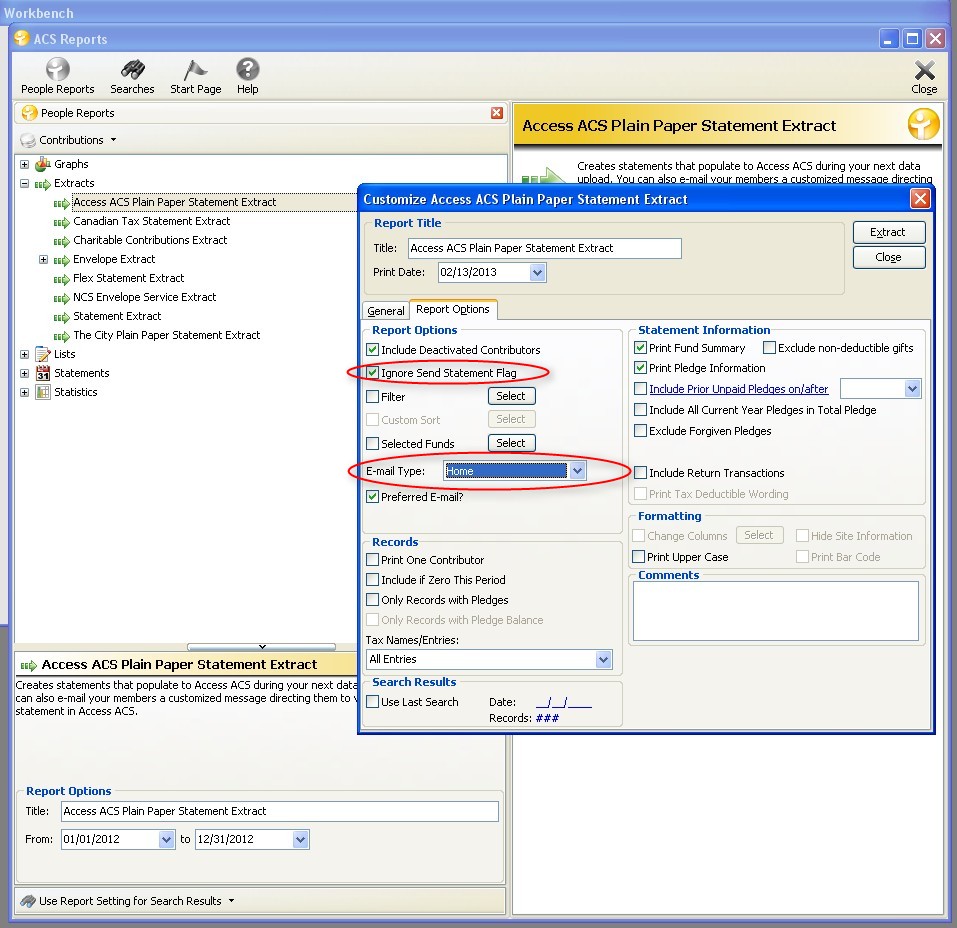
How: Basically in The People Suite go into Contribution Reports and expand the category for Extracts. Customize it to your needs - you may wish to check the option for “ignore send statement flag” + you will need to select a email type. After making your selections hit “extract”
Then do your normal upload records to access acs and it will automatically upload the pdf statments to view it.
to view it they go to their “my giving history” page and there will be a button for the pdf tax statement.
**You can have the system email anyone who has a statement in the Admin/E-Mail Notifications Area in access acs.**
E-mail via constant contact
Pros: Constant Contact will let you modify your email to be aesthetically appealing and helps monitor who received it. Does not require access acs. Instant - no mail delay.
Cons: you have to have a constant contact account to use this feature. obviously they will have a email address to receive emails.
How:
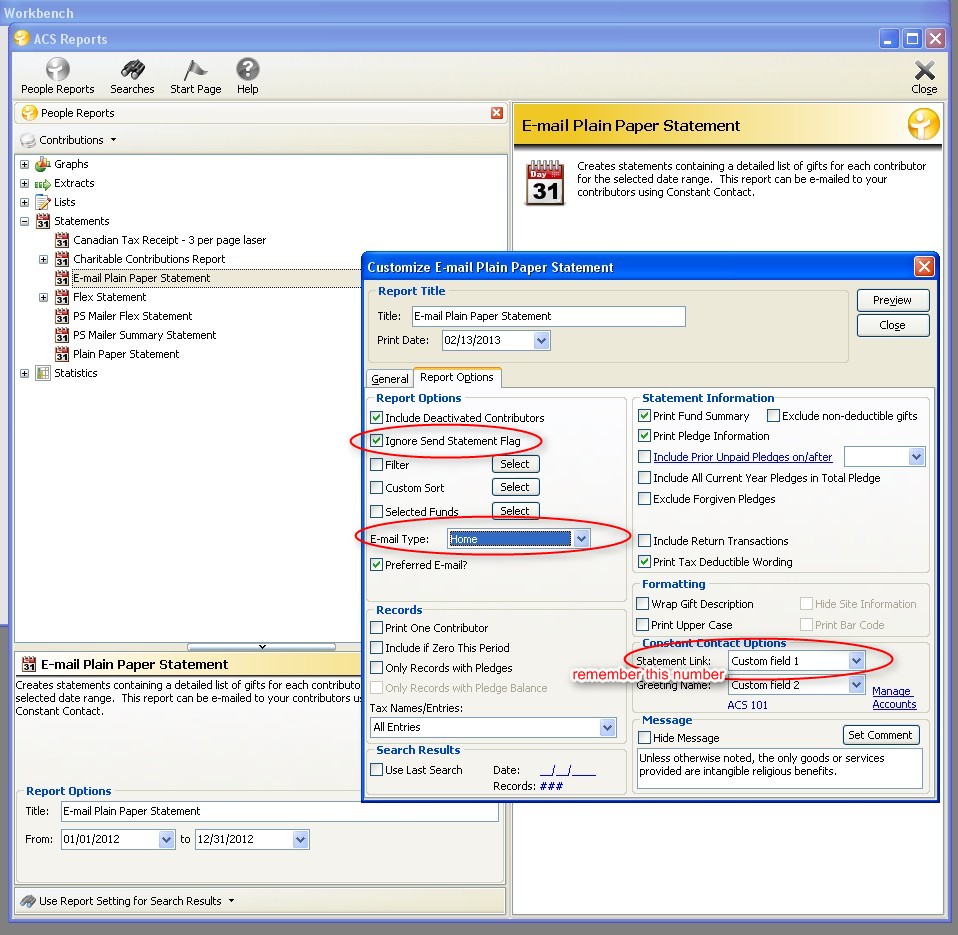
In The People Suite go into Contribution Reports and expand the category for statements. Select E-mail Plain Paper Statement, customize it as you would the plain paper statement. There is a link in the bottom right in the constant contact options section where you pick a statement link; remember the number you choose here, you’ll see it when you are composing your constant contact email. you can also put in your constant contact account info in the manage Accounts link.
Be sure you select a email type.
Preview the report, then it will offer to send the information to constant contact for you.
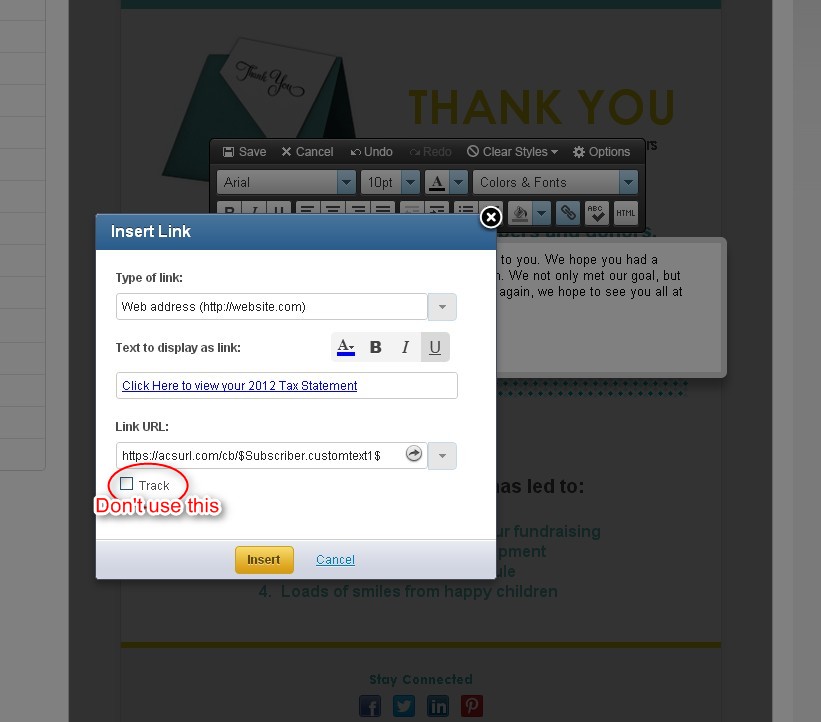
In constant contact draft a email and somewhere in the body insert a hyperlink and have it direct the recipient to https://acsurl.com/cb/$Subscriber.customtext#$ , replace the # with the number you choose in the extract for the statement link; for example if you picked 3 it would be https://acsurl.com/cb/$Subscriber.customtext3$
**You will want to not use google analytics or link tracking**
Send that email and when the member uses that link it will ask for their email, if that matches what you have in people for them they will be able to view/download the pdf tax statement .

Useful ACS Wiki Links:
Constant Contact: http://wiki.acstechnologies.com/display/ACSDOC/Sending+E-mails+in+Constant+Contact
Monday, November 5, 2012
Q: Where Can I view/add Comments in Access ACS
Q: In Access ACS where can you add/view comments if a user has rights to do so?
A: In Access ACS if you pull up someone's profile via directories / location individual there will be a comments tab that you can view that person's comments or add new ones if you have full rights to it.
You can also pull up their profile via a hyper-linked name in may other areas such as when viewing a group roster.

Notes:
A: In Access ACS if you pull up someone's profile via directories / location individual there will be a comments tab that you can view that person's comments or add new ones if you have full rights to it.
You can also pull up their profile via a hyper-linked name in may other areas such as when viewing a group roster.
Notes:
- A user can never see comments on their own record if logged in a username that is associated with their record in people.
- You can only see comment types that you have uploaded and that that user has rights to.
- A ley leader could only pull the profiles of people who are in groups that they are a leader of, a staff or admin login type can pull everyone in the database.
Subscribe to:
Posts (Atom)